Computer Ya Laptop Slow Ho Gaya Hai? 10 Tarike Fast Karne Ke (2026)

Aayush Kumar
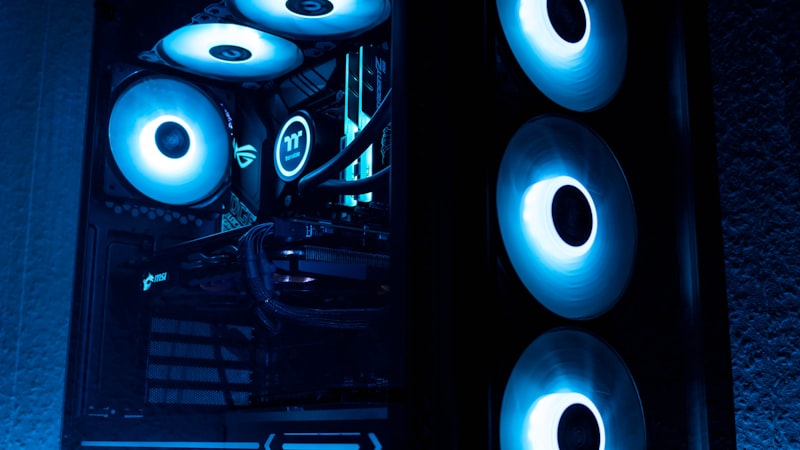
Naya laptop lene ke 1-2 saal baad aksar computer hang hona, boot hone mein 3 se 5 minute lagana aur Google Chrome ya file explorer open karte waqt screen freeze hona shuru ho jata hai. Bahut se log sochte hain ki unka computer purana ho chuka hai aur naya kharidna padega, lekin 90% cases mein problem software clutter, background startup processes aur wrong configuration settings ki hoti hai.
Is practical troubleshooting guide mein hum dekhenge Windows PC/Laptop ki performance ko revive karne ke 10 practical tareeqe jo aapke purane machine ko naye jaisa fast bana denge!
Performance Tweaks Checklist
| Setting / Tweak | Action Required | Expected Speed Gain |
|---|---|---|
| Startup Apps | Disable heavy background apps in Task Manager | ⚡️ 50% Faster Boot |
| Temp Files | Clean %temp%, temp and prefetch cache | 🧹 5GB - 15GB Free Space |
| Visual Effects | Switch to ‘Adjust for best performance’ | 🚀 Snappy UI on 4GB/8GB RAM |
| SysMain & Search | Disable unnecessary indexing services | 🛠️ Fix 100% Disk Usage |
| SFC & DISM | Repair corrupted system files via Terminal | 🛡️ Fix Random Freezes |
| SSD Upgrade | Replace mechanical HDD with SATA/NVMe SSD | 🏆 5x Overall System Speedup |
1. Startup Apps Ko Disable Karein (Boot Time 10x Fast)
Jab aap computer start karte hain, toh Spotify, Steam, Skype, Epic Games aur OneDrive jaisi hazaron apps background mein chupke se start ho jati hain aur RAM consume karti hain.
- Keyboard par
Ctrl + Shift + Escdabakar Task Manager kholein. - Left side mein “Startup apps” tab par click karein.
- Har app ke aage uska “Startup impact” (High / Medium / Low) dekhein.
- Jin apps ki zaroorat booting ke waqt nahi hai, unpar right-click karke “Disable” kar dein.
2. Temporary Junk & Cache Files Clean Karein
Windows rozana hazaron cache aur temp files create karta hai jo hard drive par gigabytes of space gher leti hain:
Windows + Rdabayein -> type kareintemp-> Enter dabayein -> Saari files select karkeShift + Deletekarein.Windows + Rdabayein -> type karein%temp%-> Enter dabayein -> Saari files delete karein (jo file in-use ho use Skip kar dein).Windows + Rdabayein -> type kareinprefetch-> Continue dabayein aur saari temporary logs delete karein.
3. Windows Storage Sense Ko Enable Karein
Windows 11 aur 10 mein ek smart automatic background cleaning engine hota hai:
- Settings (Win + I) ➔ System ➔ Storage mein jayein.
- Storage Sense toggle ko ON karein.
- Configure Storage Sense par click karke Recycle Bin cleanup ko “Every 14 days” par set karein. Iske baad Windows khud purana junk saaf karta rahega.
4. Visual Effects Ko Best Performance Par Set Karein
Agar aapke laptop mein 8GB ya usse kam RAM hai, toh Windows ke translucent blur effects aur window animations GPU aur memory ko strain karte hain:
- Windows Search mein type karein:
View advanced system settingsaur Enter dabayein. - System Properties dialog mein Advanced Tab par jayein.
- Performance section mein Settings button par click karein.
- “Adjust for best performance” radio button select karein.
- (Optional Tip: Text readable rakhne ke liye neeche list mein sirf “Smooth edges of screen fonts” ko tick rehne dein).
- Apply ➔ OK karein. Laptop ki responsiveness turant smooth ho jayegi.
5. Corrupted System Files Ko Repair Karein (SFC & DISM Scan)
Aksar abnormal shutdown ya power cut ki wajah se Windows system files corrupt ho jati hain jisse mouse cursor stutter karta hai:
- Windows Search mein type karein
cmd, right-click karke “Run as Administrator” chunein. - Ye command type karein aur Enter dabayein:
sfc /scannow - Scan poora hone ke baad agar errors milein, toh second repair command run karein:
DISM /Online /Cleanup-Image /RestoreHealth - Process poora hone ke baad laptop ko ek baar restart karein.
6. High Performance Power Plan Activate Karein
Laptops by default “Balanced” ya “Power Saver” mode par set hote hain jo battery bachane ke liye processor ki clock speed ko throttle kar dete hain:
- Search mein type karein
Power Plan-> Choose a power plan kholein. - “Balanced” ki jagah “High Performance” ya “Ultimate Performance” select karein.
- Jab aap laptop charger par connect karke coding, video editing ya gaming karenge, toh CPU apni maximum potential par run karega.
7. Virtual Memory (Paging File) Optimize Karein
Agar 8GB RAM full ho jati hai, toh Windows SSD/HDD par virtual memory allocate karta hai:
Advanced System Settings➔Advanced Tab➔Performance Settings➔Advanced Tabmein jayein.- Virtual Memory section mein Change par click karein.
- “Automatically manage paging file size” untick karein.
- “Custom Size” select karke Initial size ko
1.5 x Current RAMaur Maximum size ko3 x Current RAMset karein.
8. Hardware Upgrade: SSD Lagwayein (The Ultimate Fix)
Agar aapke PC mein abhi bhi purani spinning hard disk (HDD) lagi hai, toh duniya ka koi software tweak uski physical speed limit (100 MB/s) ko nahi badha sakta.
- Ek standard 500GB SATA ya NVMe SSD (₹2,500 - ₹3,500) lagwane se read/write speed 500 MB/s se 3500 MB/s ho jati hai.
- Windows boot time 2 minute se ghat kar sirf 10-15 second reh jata hai!
📚 Ye Bhi Zaroor Padhein
- 💻 Windows 11 Slow Chal Raha Hai? 7 Hidden Fixes
- 💻 Best Laptops for Students Under ₹40,000 (2026 Buyers Guide)
- 🔋 Phone Ki Battery Life Kaise Badhayein? Practical Tips
🌐 Authoritative Reference & Source: Adhik jankari aur official documentation ke liye aap Microsoft Windows Support Portal ko visit kar sakte hain.
Ye article kaisa laga? Share karein:
Apne doston ki madad karein useful tech jankari share karke!
TechVerse VIP Community
Har roz nayi tech tips, hidden AI tools aur discount deals ke liye judein!
Aayush Kumar
Aayush Kumar TechVerse ke Founder aur Lead Technical Editor hain. Woh technology, software development, AI tools aur consumer gadgets par research-based content publish karte hain.
Lekhak ka poora profile aur sabhi articles dekhein →Related Posts 🔍
Windows 11 Slow Chal Raha Hai? 9 Practical Settings Jo Purane PC Ko Rocket Bana Dengi (2026)
Sep 7, 2026
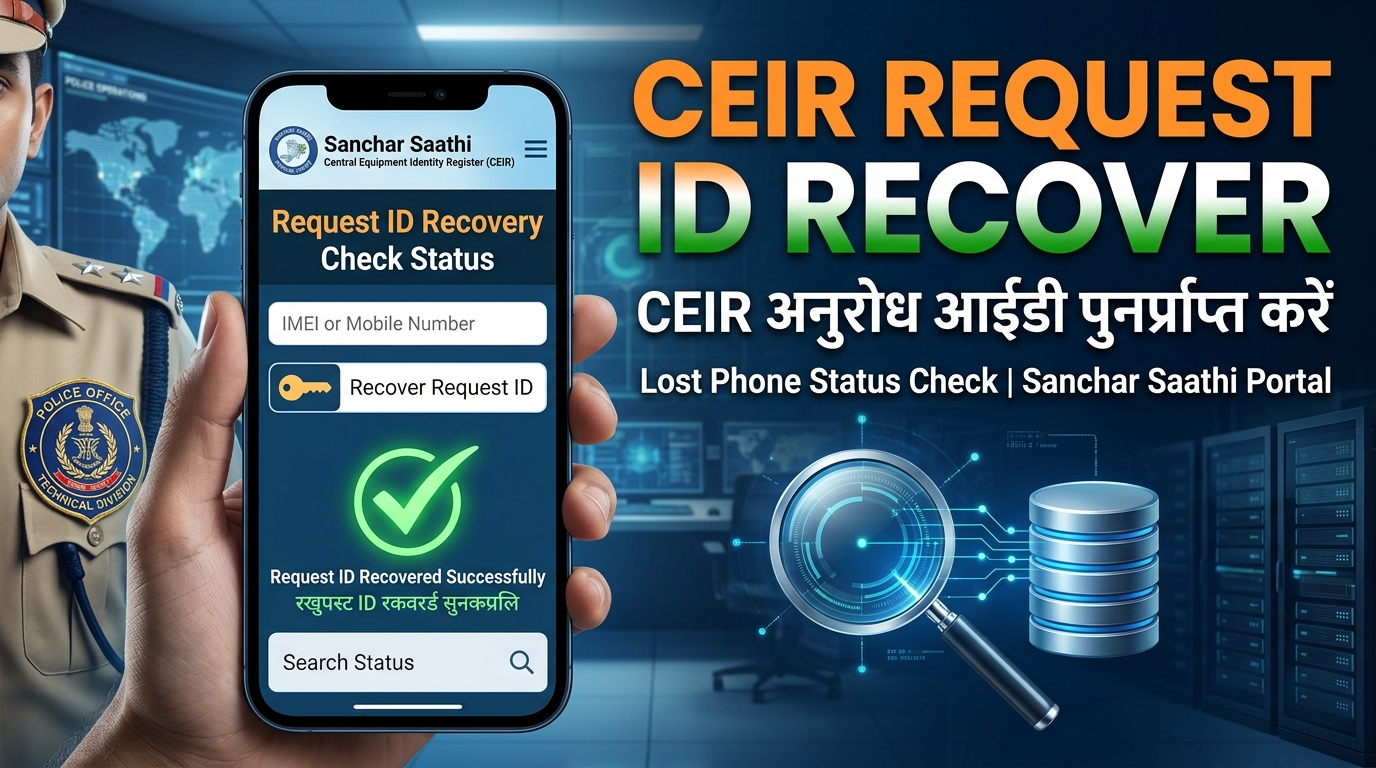
CEIR Portal Request ID Bhool Gaye? Status Check Aur ID Recover Kaise Karein (2026)
Sep 13, 2026

Call Recording Announcement Kaise Band Karein? (Google Dialer Fix 2026 - Realme, Vivo, Xiaomi, OnePlus)
Sep 16, 2026

Tech Freelancing Kaise Shuru Karein? 2026 Beginners Complete Guide (Upwork, Fiverr)
Aug 15, 2026
Tech Freelancing Kaise Shuru Karein? 2026 Beginners Complete Guide (Upwork, Fiverr)
Phone Ki Battery Life Kaise Badhayein? 12 Practical Tips (2026)
Tech Updates Seedha Inbox Mein!
Har hafta latest AI news, coding tips, aur gadget reviews. Get weekly tech updates straight to your inbox.
✅ No spam, sirf quality content. Kabhi bhi unsubscribe kar sakte ho.