Git Push Rejected (error: failed to push some refs) Solution in Hindi: Complete Step-by-Step Fix

Aayush Kumar
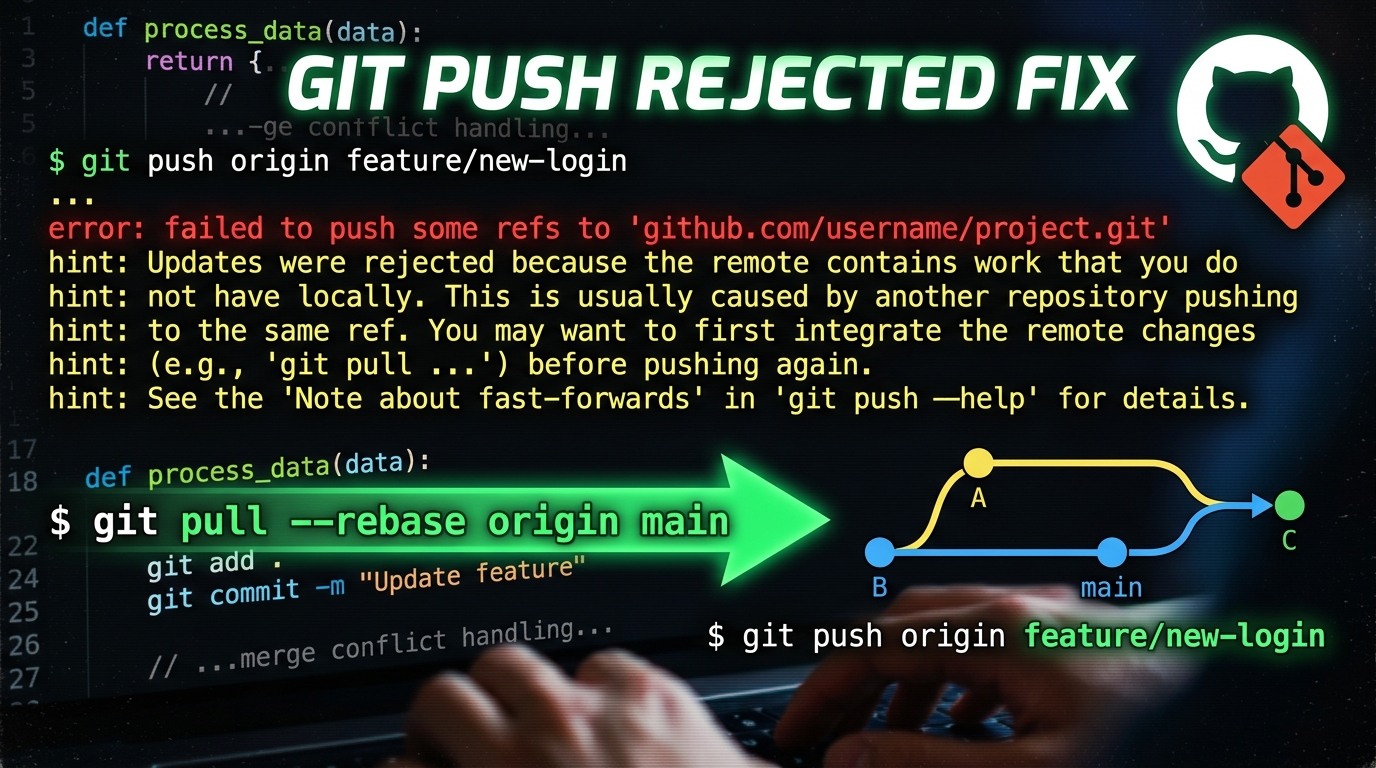
Jab bhi koi beginner developer ya software engineer Git aur GitHub sikhna shuru karta hai, to ek error lagbhag har kisi ko raat bhar pareshaan karta hai:
! [rejected]        main -> main (fetch first)
error: failed to push some refs to 'github.com/username/repo.git'
hint: Updates were rejected because the remote contains work that you do
hint: not have locally. This is usually caused by another repository pushing
hint: to the same ref. You may want to first integrate the remote changes
hint: (e.g., 'git pull ...') before pushing again.
Ye error screen par aate hi beginners darr jaate hain ki unka code delete ho gaya ya repo corrupt ho gayi. Par sach ye hai ki ye koi bug nahi hai—ye Git ka ek protective security feature hai!
Iss comprehensive Hindi tutorial mein hum detail mein samjhenge ki ye error kyu aata hai aur bina ek bhi line code khoe isko professionally kaise solve kiya jata hai.
Error Ka Asli Kaaran (Root Cause) Kya Hai?
Git ek Distributed Version Control System hai. Iska matlab:
- Ek repo aapke local PC par hai (Local Repository).
- Ek repo GitHub ke server par hai (Remote Repository).
Sochiye GitHub par aapki repo mein commits hain: A -> B -> C.
Aapke computer par commits hain: A -> B -> D.
GitHub ke paas Commit C hai jo aapke computer par maujood nahi hai! Aisa kab hota hai?
- Aapne GitHub website par jaakar direct
README.mdya koi file edit kar di. - Aapki team ke kisi doosre developer ne branch par naya code push kar diya.
- Aapne GitHub par repo banate waqt “Add a README file” ya “.gitignore” tick kar diya tha, par local repo alag se
git initki thi.
Agar Git aapka push accept kar leta, to GitHub ka Commit C gayab ho jata! Isiliye Git kehta hai: “Pehle GitHub ka latest code apne PC par laao (pull karo), sync karo, phir push karo.”
Method 1: The Clean Professional Way (git pull --rebase)
Professional developers hamesha rebase ka istemal karte hain taaki git commit history clean rahe.
Step-by-Step Commands:
1. Remote changes ko pull aur rebase karein:
git pull --rebase origin main(Note: Agar aapki branch ka naam master hai, to main ki jagah master likhein).
2. Agar koi conflict nahi hai, to direct push karein:
git push origin mainBas! Aapka code bina kisi jhanjhat ke GitHub par live upload ho jayega.
Method 2: Merge Conflict Aaye To Kaise Solve Karein?
Agar aapne aur kisi doosre developer ne same file ki same line ko edit kiya tha, to pull karne par terminal kahega:
CONFLICT (content): Merge conflict in index.html
Iska solution bohot aasan hai:
- VS Code Editor kholein: Jis file mein conflict hai wo red ya highlight ho jayegi.
- File ke andar aapko aisi markings dikhengi:
<<<<<<< HEAD (Current Change - Aapka code) <h1>Welcome to My Awesome Portfolio</h1> ======= <h1>Welcome to Technical Dikhao Web App</h1> >>>>>>> 7d4a2b1 (Incoming Change - GitHub ka code) - VS Code ke upar clickable buttons dikhenge:
- Accept Current Change: Agar aapko apna likha hua code rakhna hai.
- Accept Incoming Change: Agar GitHub wala code sahi hai.
- Accept Both: Agar dono code chahiye.
- Correct code chunne ke baad file ko Save karein (
Ctrl + S). - Terminal mein ye 3 commands chalaein:
git add .
git rebase --continue
git push origin main
Problem solve ho jayegi aur commits successfully push ho jayenge!
Method 3: Unrelated Histories Error Ka Solution
Agar aapko ye error mile:
fatal: refusing to merge unrelated histories
Iska matlab local repo aur GitHub repo dono alag-alag roots se shuru hui hain. Isko bypass karne ke liye ye command use karein:
git pull origin main --allow-unrelated-historiesIske baad enter dabayein, nano/vim editor khule to :wq type karke enter karein, aur phir:
git push origin mainWarning: git push --force Kab Use Karein Aur Kab Nahi?
Aapko YouTube par ya StackOverflow par log kahenge:
“Bhai git push -f origin main chala de, sab theek ho jayega!”
⚠️ Caution:
- Kab Chala Sakte Hain: Agar repo 100% aapki personal hai, aap akele kaam kar rahe hain, aur GitHub ka puraana code aapko sach mein nahi chahiye.
- Kab KABHI NAHI Chalana: Agar aap company mein hain ya college team project par hain. Force push chalate hi aapke doston ka code permanently delete ho jayega aur team repo crash ho jayegi!
Pro Developer Cheat Sheet
| Situation | Best Command |
|---|---|
| Normal sync update | git pull --rebase origin main |
| New branch push | git push -u origin feature-branch |
| Check commit difference | git log --oneline --graph --all |
| Abort a bad merge/rebase | git rebase --abort ya git merge --abort |
Related Web Development Guides:
🌐 Authoritative Reference & Source: Adhik jankari aur official documentation ke liye aap Git-SCM Official Documentation ko visit kar sakte hain.
Ye article kaisa laga? Share karein:
Apne doston ki madad karein useful tech jankari share karke!
TechVerse VIP Community
Har roz nayi tech tips, hidden AI tools aur discount deals ke liye judein!
Aayush Kumar
Aayush Kumar TechVerse ke Founder aur Lead Technical Editor hain. Woh technology, software development, AI tools aur consumer gadgets par research-based content publish karte hain.
Lekhak ka poora profile aur sabhi articles dekhein →Related Posts 🔍
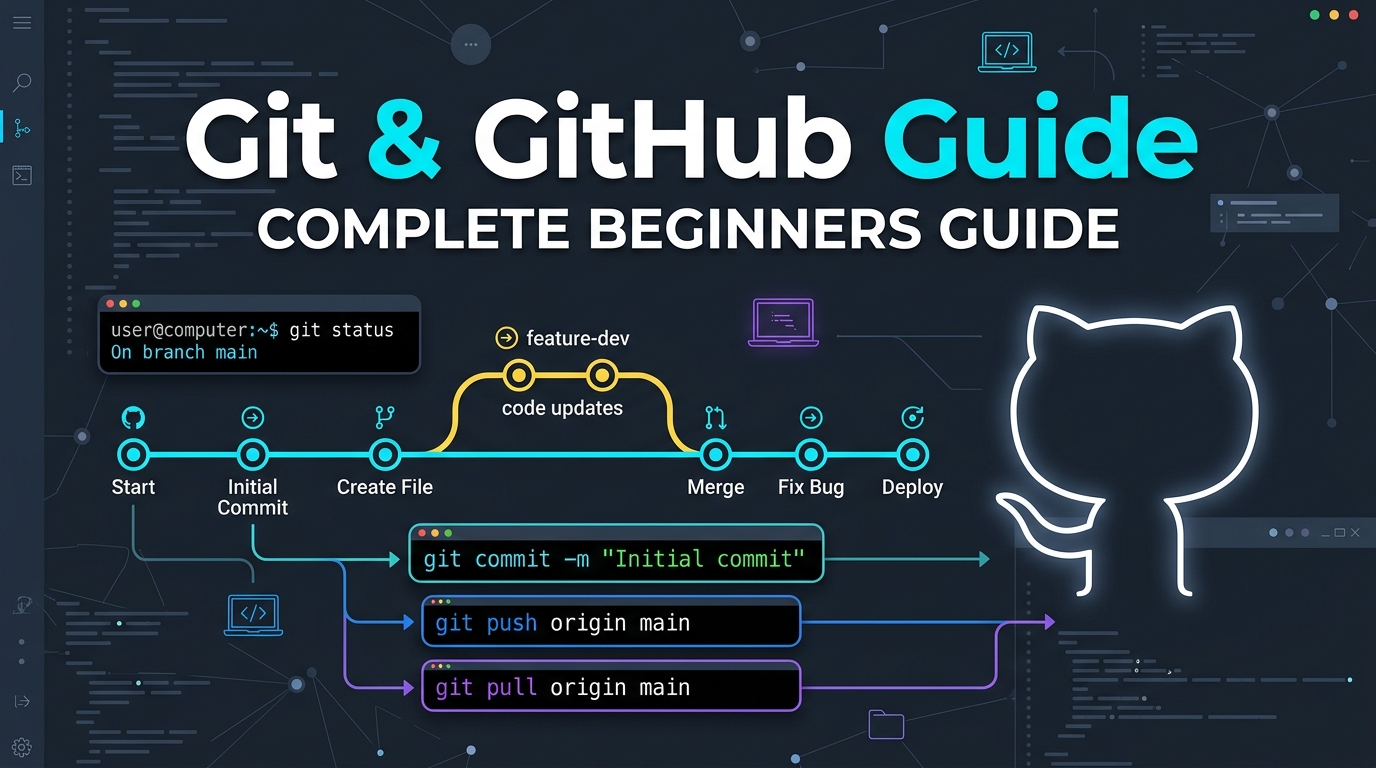
Git Aur GitHub Complete Guide in Hindi (2026): Commit, Push, Pull & Branching Explained
Sep 12, 2026
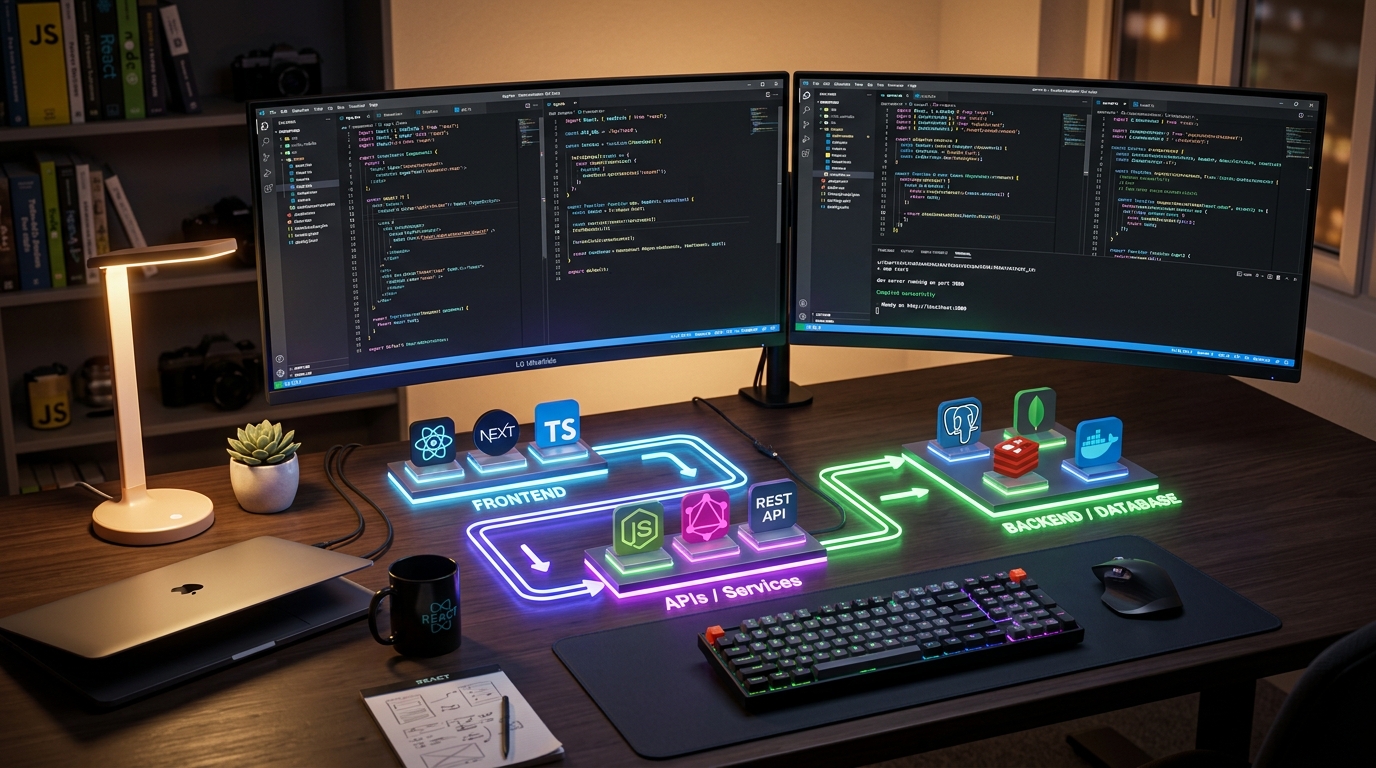
Full Stack Developer Kaise Bane 2026: Complete Step-by-Step Roadmap (Frontend, Backend, AI Tools & Jobs)
Sep 14, 2026
Top 12 VS Code Extensions Jo Aapki Coding Speed 2x Kar Dengi (2026)
Aug 21, 2026

Docker Kya Hai aur Kaise Kaam Karta Hai? Beginners Guide in Hindi (2026)
Sep 16, 2026
Phone Storage Space Running Out Problem Fix: Gallery Khali Fir Bhi Phone Full Kyu Dikhata Hai?
Earbuds Ek Side Not Working Problem Solution: Boat, Realme, Noise TWS Kaise Fix Karein
Tech Updates Seedha Inbox Mein!
Har hafta latest AI news, coding tips, aur gadget reviews. Get weekly tech updates straight to your inbox.
✅ No spam, sirf quality content. Kabhi bhi unsubscribe kar sakte ho.